

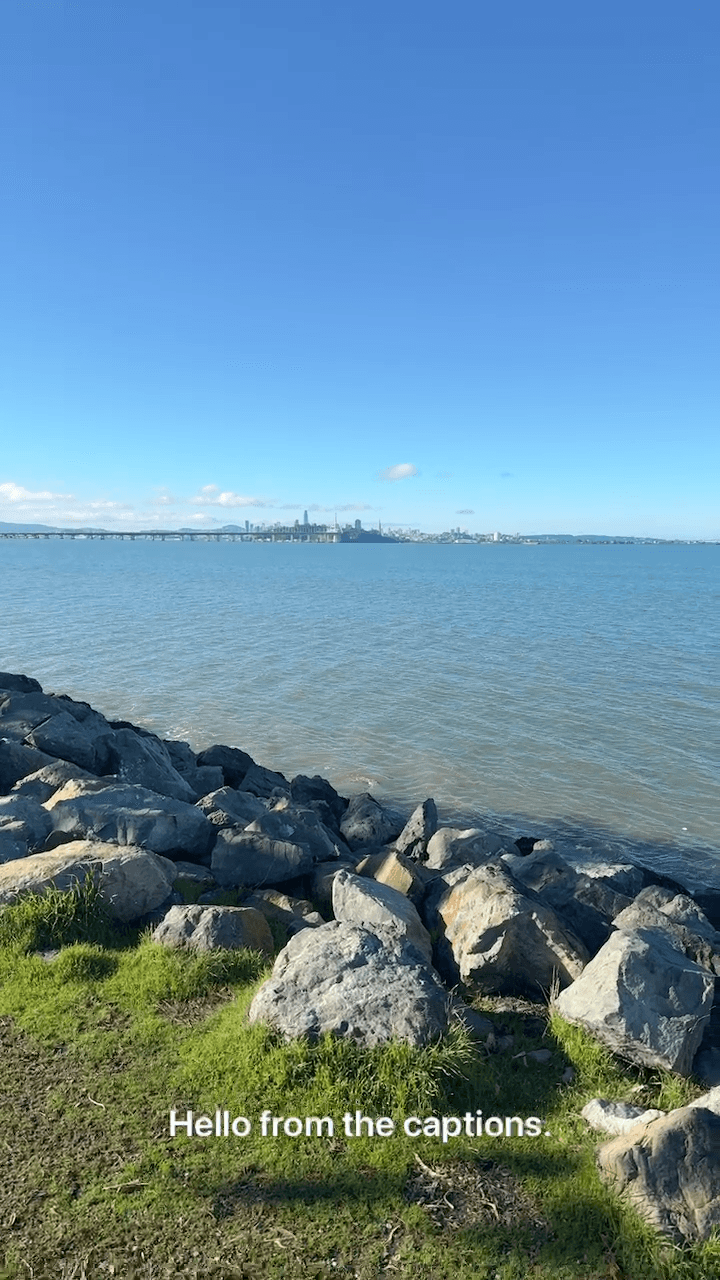
Live captions rendered inside the video.
Why live captions matter
Live captionsFast summary
Captions where platforms don’t provide them
Many streaming platforms either don’t support live captions—or limit how they work. Castream fills the gap by generating captions once and delivering them everywhere.
- 1Accessibility even on platforms with no native caption support.
- 2Consistency—the same captions across every destination.
- 3Engagement for viewers watching muted or on mobile.
The problem with native captions
- Some platforms don’t support live captions at all.
- Others only generate captions after the stream ends.
- Quality and timing vary wildly by destination.
How Castream fixes it
- 01Captions are generated once, upstream.
- 02Timing stays consistent across all platforms.
- 03No reliance on platform-specific caption systems.
- 04Your captions work the same everywhere you stream.
How Castream Live Captions work
| Step | What happens |
|---|---|
| 1. Capture audio | Castream reads audio from your phone mic |
| 2. Real-time inference | Speech is converted into captions as you speak. |
| 3. Caption packaging | Captions are formatted for live delivery. |
| 4. Multiplatform output | Captions are embedded or delivered per destination capabilities. |
Works even when platforms don’t
- RTMP platforms without native captions
- Emerging platforms with limited accessibility features
- Facebook Live (via embedded caption tracks)
- Twitch (caption-compatible formats)
Mobile-first creators
- No dependency on platform caption tooling.
- Captions stay live even if the platform doesn’t offer them.
- Perfect for IRL, vertical, and on-the-go streams.
Tips for best results
- Use a clean mic signal for maximum accuracy.
- Reduce overlapping voices when possible.
- Test once—captions work the same everywhere after.
- Think of captions as part of your stream, not the platform.