
How to Connect OBS Studio to Castream (Step-by-Step Guide)
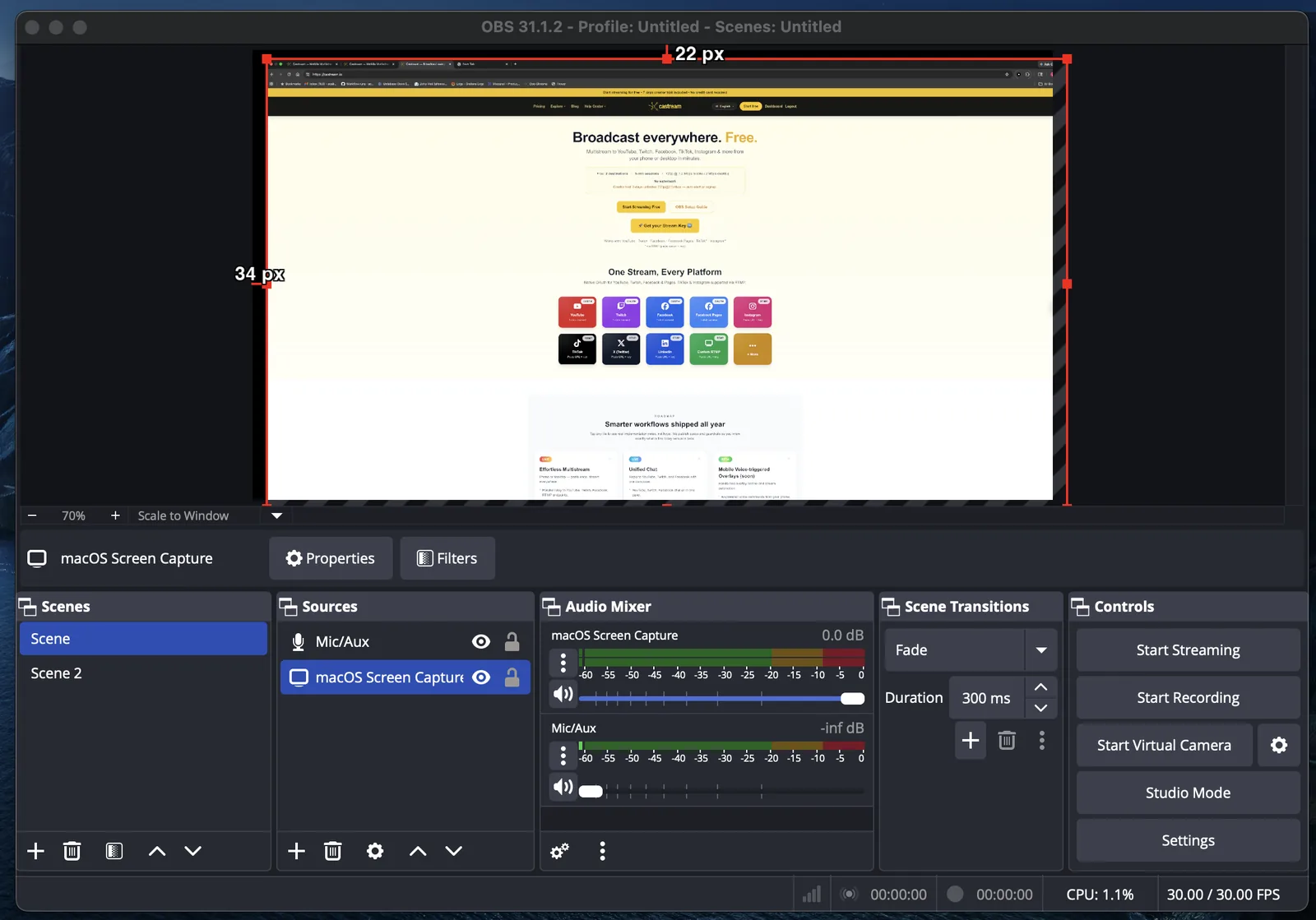
Learn how to stream with OBS Studio to YouTube, Twitch, Facebook, TikTok, Instagram Live, and more using Castream.
This guide covers:
- How to connect OBS to Castream using RTMP
- Best OBS video and audio settings
- How to multistream to multiple platforms at once
- Common OBS streaming issues and fixes
Works on Windows, macOS, and Linux.
What Is OBS Studio?
OBS Studio (Open Broadcaster Software) is a free, open-source streaming software used for:
- Gaming streams
- Screen sharing
- Webinars
- Podcasts
- Live events
- Professional content creation
When you connect OBS to Castream, you send one stream to Castream. Castream distributes it to all your linked platforms simultaneously.
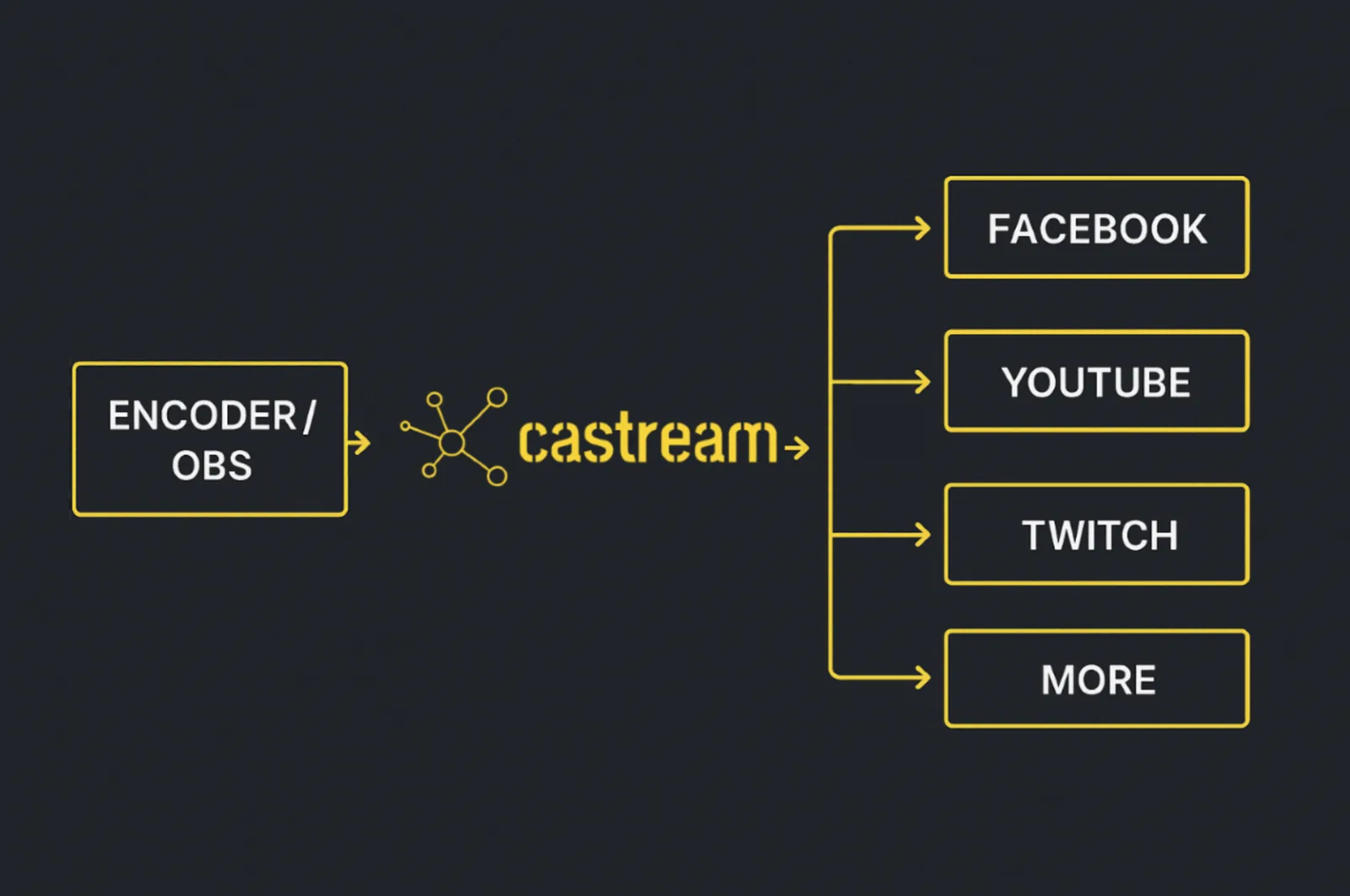
This is called multistreaming.
Step 1: Download and Install OBS Studio
- Go to https://obsproject.com
- Download the version for your operating system
- Install using default settings
Tip: Keep OBS updated to avoid encoding or streaming bugs.
Step 2: Create a Scene in OBS
Scenes control what your audience sees.
- Open OBS
- In the Scenes panel → click ➕ → name your scene (e.g., “Main Stream”)
- Add sources depending on your setup:
- Display Capture → stream your entire screen
- Window Capture → stream a specific application or game
- Video Capture Device → add a webcam
- Audio Input Capture → microphone
- Audio Output Capture → desktop or game audio
You can create multiple scenes and switch between them during your live stream.
Step 3: Connect OBS to Castream (RTMP Setup)
To stream from OBS to Castream:
- Open Settings → Stream
- Set Service to: Custom
- Copy your RTMP Server URL from your Castream dashboard
Example:
rtmp://ingest.castream.io/live
- Copy your Stream Key from your Castream dashboard and paste it into OBS
Click OK to save.
Now OBS is connected to Castream.
Castream automatically sends your stream to all linked destinations like:
- YouTube Live
- Twitch
- Facebook Live
- TikTok Live
- Instagram Live
Important: Keep your stream key private. Anyone with it can stream to your account.
Step 4: Best OBS Settings for Streaming
Optimizing OBS settings ensures stable streaming and good video quality.
Video Settings (Settings → Video)
- Base (Canvas) Resolution: match your monitor (e.g., 1920x1080)
- Output (Scaled) Resolution:
- Free Plan → 1280x720 (720p)
- Creator / Pro → 1920x1080 (1080p)
- FPS:
- 30 FPS → stable
- 60 FPS → smoother gameplay (requires more performance)
Output Settings (Settings → Output)
Encoder:
- NVIDIA GPU → NVENC (recommended)
- AMD GPU → AMF
- Intel → QSV
- CPU fallback → x264
Recommended Bitrate:
- 2500–4000 kbps → 720p
- 4000–6000 kbps → 1080p
Audio Bitrate:
- 128–192 kbps
If your upload speed is limited, lower bitrate before lowering resolution.
Step 5: How to Go Live with OBS and Castream
- Click Start Streaming in OBS
- Go to https://castream.io/secure
- Select your streaming destinations
- Click Go Live
Your stream will now broadcast to all selected platforms at the same time.
One upload. Multiple platforms.
Common OBS Streaming Problems (and Fixes)
Black Screen in OBS (Windows Laptops)
Right-click OBS → Run with high-performance GPU.
Stream Lag or Dropped Frames
- Lower bitrate
- Reduce output resolution
- Check your internet upload speed
No Audio in Stream
- Open the Audio Mixer in OBS
- Make sure your mic and desktop audio sources are added and not muted
High Stream Delay
- Check platform latency settings
- Avoid excessive bitrate
- Ensure stable upload speed
Advanced Tips for Professional Multistreaming
- Use multiple scenes for layout switching (gameplay + webcam overlay, full webcam, etc.)
- Add overlays and alerts for branding
- Record locally in OBS for high-quality backups
- Test streams privately before major events
OBS + Castream: Desktop Multistreaming Made Simple
OBS desktop streaming works on every Castream plan, including Free.
You can combine:
- Desktop streaming (OBS)
- Mobile streaming (iOS / Android)
- Browser streaming
- External RTMP tools
All from one Castream account.
Frequently Asked Questions
Can I stream to YouTube and Twitch at the same time with OBS?
Yes. OBS sends one stream to Castream, and Castream multistreams it to all linked platforms simultaneously.
Do I need separate stream keys for each platform?
No. You only use your Castream stream key in OBS. Castream handles platform-specific keys behind the scenes.
What bitrate should I use for OBS streaming?
- 720p → 2500–4000 kbps
- 1080p → 4000–6000 kbps
Always adjust based on your internet upload speed.
Need more help? Visit the Castream Help Center for additional streaming guides and setup tutorials.