
Castream Help Center
Castream
3 Articles
Categories
4 TotalLatest articles
3 ArticlesCastream2/28/2026
📱 Best Mobile Live Streaming Setup (2026 Guide)
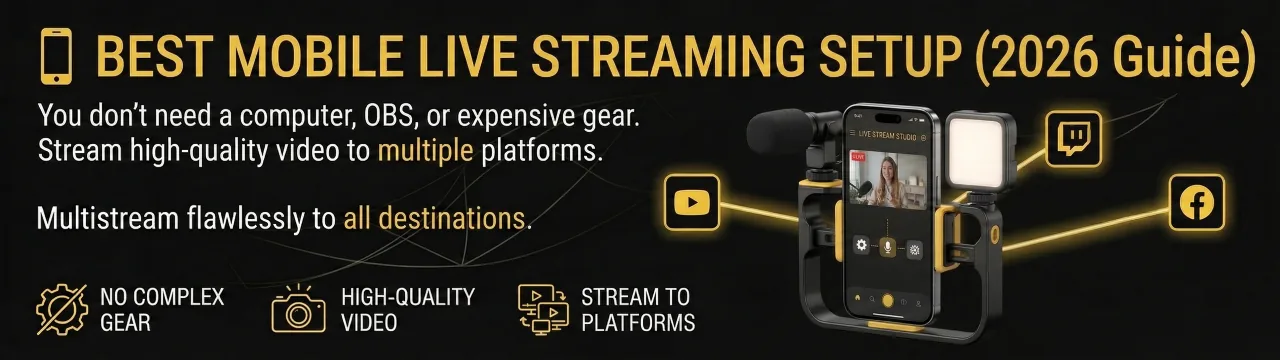
📱 Best Mobile Live Streaming Setup (2026 Guide)
Looking for the best mobile live streaming setup in 2026?
You don’t need a computer, OBS, or expensive gear. With the right setup, you can stream high-quality video from your phone to multiple platforms like YouTube, Twitch, and Facebook.
This guide covers:
- The exact gear you need (beginner → pro)
- How to improve video, audio, and stability
- The best mobile streaming workflow using Castream
If you want a reliable setup right now:
- 📱 Phone: iPhone or Android (recent model)
- 🎤 Audio: External microphone
- 🌐 Connection: Reliable network (WiFi, 5G, or LTE depending on your environment)
- 📡 App: Castream (automatic bitrate + multistreaming)
👉 Castream automatically adjusts quality for mobile streaming, typically 720p or 1080p depending on your plan and connection.
🧠 What Makes a Good Mobile Streaming Setup?A high-quality mobile stream depends on three core components:
- 📱 Video (your phone camera)
- 🎤 Audio (your microphone)
- 🌐 Network (your internet connection)
If one fails, your stream quality drops immediately.
📱 1. Best Phone for Live StreamingYour phone handles everything: camera, encoding, and streaming.
Recommended specs:- Stable performance (no overheating)
- Good camera (front or rear)
- Reliable encoding for longer sessions
- iPhone (A14 chip or newer)
- Android flagship or strong mid-range
🎤 2. Audio (Most Important Upgrade)💡 Use the rear camera for better quality when possible.
Audio quality is the #1 factor in viewer retention.
Options:- 🎤 External microphone (recommended)
- 🎧 Wired earbuds (simple fallback)
- 📱 Built-in mic (last resort)
🌐 3. Best Internet for Live Streaming🔥 If you upgrade one thing, upgrade your audio.
Your connection determines stream stability and quality.
Connection types:- 🏠 WiFi → Best for higher quality and stability (ideal for indoor streaming)
- 📶 5G / LTE → Best for mobility and outdoor streaming
- ⚙️ Automatic bitrate adjustment based on your network
- 📺 Resolution adapts (typically 720p or 1080p)
- 📉 Quality adjusts dynamically to prevent drops
- WiFi → higher bitrate, better quality, more stable
- Mobile data → more flexible, but can fluctuate
📡 4. Best Mobile Streaming App⚠️ The best connection is the one that’s stable in your environment, not just the fastest on paper.
You need a mobile app that can:
- Encode video efficiently
- Adapt to network conditions
- Stream to multiple platforms
- Provide a preview before going live
- 📡 Multistream to YouTube, Twitch, Facebook, and more
- ⚙️ Automatic bitrate optimization for mobile
- 👀 Built-in live stream preview
- 🌐 Share your stream via your @handler profile
- 📱 Designed specifically for mobile streaming
👉 You can stream on Castream alone or connect external destinations.
🧩 Optional Gear (Upgrade Your Setup)Once your basics are solid, these upgrades improve quality significantly:
📸 Tripod or phone mount- Stable video
- Professional framing
- Ring light or natural light
- Huge visual improvement
- Power bank or charger
- Prevents stream interruptions
- Phone
- Built-in mic or earbuds
- Any stable connection (WiFi or mobile data)
- Castream
👉 Start here and go live immediately
🟡 Creator Setup (Recommended)- Phone
- External microphone
- Tripod
- Strong connection (WiFi preferred when available)
- Castream (multistreaming enabled)
👉 Best balance of quality and flexibility
🔴 Pro Mobile Streaming Setup- High-end phone
- External microphone setup
- Tripod + lighting
- Optimized network (strong WiFi or reliable 5G)
- Castream + external destinations
👉 Studio-level quality from your phone
🔄 How to Go Live from Your Phone- Open Castream
- Tap Go Live
- Start streaming
- Preview your stream:
https://castream.io/stream/yourhandler - Share your profile or stream link
Yes. Modern smartphones can fully handle live streaming, including encoding and broadcasting.
What resolution should I stream at?Castream automatically selects the best option, typically:
- 720p for lower bandwidth or free plans
- 1080p for stronger connections and higher tiers
Yes. Castream dynamically adjusts bitrate to keep your stream stable on mobile networks.
Can I stream to multiple platforms at once?Yes. Castream allows you to multistream to YouTube, Twitch, and Facebook simultaneously.
🚫 Common Mobile Streaming Mistakes- ❌ Using the built-in mic in noisy environments
- ❌ Streaming on unstable internet
- ❌ Shaky handheld video
- ❌ Not testing before going live
- ❌ Overcomplicating the setup early
- Use WiFi when available for higher quality
- Use mobile data for flexibility when on the move
- Test your stream using preview before going public
- Use your @handler profile as your main sharing link
- Upgrade audio before video gear
- 📱 A smartphone is enough for professional live streaming
- 🎤 Audio quality matters more than video
- 🌐 Choose the best connection for your environment (WiFi or mobile data)
- ⚙️ Castream automatically optimizes bitrate and resolution
- 📡 Multistream to multiple platforms from one app
- 🚀 Start simple, then upgrade over time
Mobile live streaming adapts to where you are.
Not the other way around.
Castream2/27/2026
Your Castream Profile: Streams, Settings & Sharing
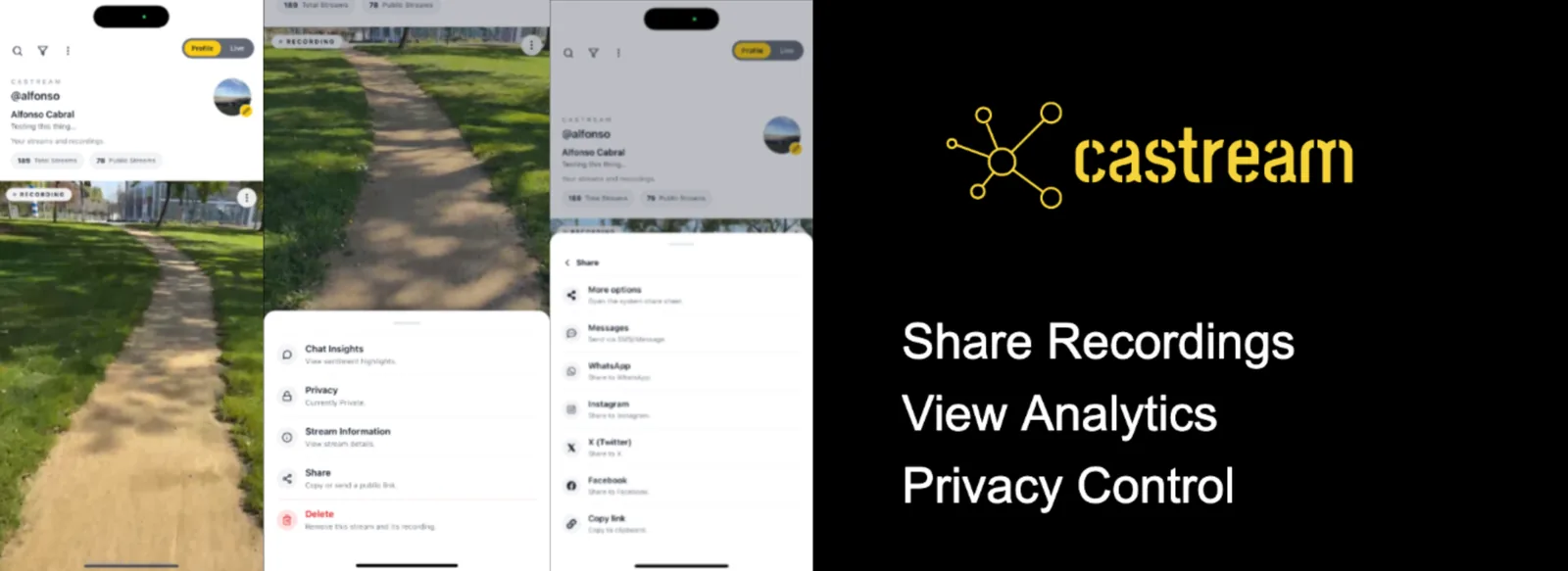
👤 Profile Screen (App)
Your Profile Screen is your home base inside Castream. It’s where your identity lives, your streams show up, and your audience can find you.
Think of it as your personal broadcast hub 📡
🆔 Your @handler (your identity)At the top of your profile, you’ll see your @handler.
- Example:
@alfonso - Your profile URL: https://castream.io/@yourhandler
🚨 When you sign up, you get a random handler by default.
You can change it to a unique one (if available) in:
Settings → Account
Your @handler powers:
- Your public profile page 🌐
- Your live stream preview 🎥
- Your shareable identity across Castream
Your profile includes:
- Display name (e.g. Castream)
- Bio (short description about you)
- Profile picture
- Stats:
- Total Streams
- Public Streams
Tap the ✏️ icon to edit your profile.
🔍 Discover & Search CreatorsUse the search icon 🔎 at the top of the screen to explore Castream.
You can:
- Find other @handlers
- Discover Castream creators
- Watch public streams and recordings
🌐 Only public streams from other users are visible.
This is the easiest way to explore content and see how others are using Castream.
🎥 Your Streams & RecordingsBelow your profile, you’ll see your stream history:
- 🔴 Live streams
- 🎥 Recordings (past streams)
- 🔒 Private vs 🌐 Public visibility
Each stream card shows:
- Title
- Status (Live / Recording)
- Timestamp
- ⏱ Duration
- 💬 Chat messages count
- 📡 Destinations (Castream + any external platforms like YouTube, Twitch, Facebook)
This gives you a quick snapshot of how each stream performed and where it was broadcast.
⚙️ Stream OptionsTap the ••• (menu) on any stream to access:
- 💬 Chat Insights (sentiment & highlights)
- 🔒 Privacy (Public / Private)
- ℹ️ Stream Information (details, duration, destinations, chat count)
- 📤 Share (copy link or share externally)
- 🗑 Delete (remove stream and recording)
You can delete any stream from your profile:
- Tap ••• (menu) on the stream
- Tap Delete
- Confirm
⚠️ Deleting a stream will permanently remove:
- The recording
- Stream data
- Chat messages
This action cannot be undone.
🔒 Privacy ControlEach stream can be:
- Private 🔐 → Only accessible via direct link
- Public 🌐 → Visible on your profile and discoverable
📤 Sharing Your Profile & Streams⚠️ If you want your stream to appear on your profile (
/@yourhandler),
make sure Privacy = Public
From your profile or stream:
-
Copy your profile link
→ https://castream.io/@yourhandler -
Or share a specific stream
You can share via:
- Messages
- X (Twitter)
- Or copy the link 🔗
At the top right, you’ll see:
- Profile → Your streams and recordings
- Live → Active live session (when streaming)
This lets you quickly switch between managing your content and going live.
💡 Pro tips- Keep your @handler clean and memorable (this becomes your link)
- Set streams to Public if you want visibility
- Use search to discover other creators and get inspiration
- Review chat message counts to understand engagement
- Check destinations to confirm where your stream was broadcast
- 👤 Your profile is your broadcast identity
- 🆔 Your @handler powers all your links
- 🔍 Search lets you discover other creators and public streams
- 🎥 All your streams and recordings live here
- 💬 Chat message count shows engagement per stream
- 📡 Destinations show where your stream was broadcast
- 🗑 You can delete streams anytime (permanently)
- 🔒 Privacy controls visibility
- 📤 Easy sharing to external platforms
- 📡 Your profile becomes your central hub on Castream
This is your stage when you’re not live. And your landing page when you are.
Castream2/27/2026
Live Streaming Preview
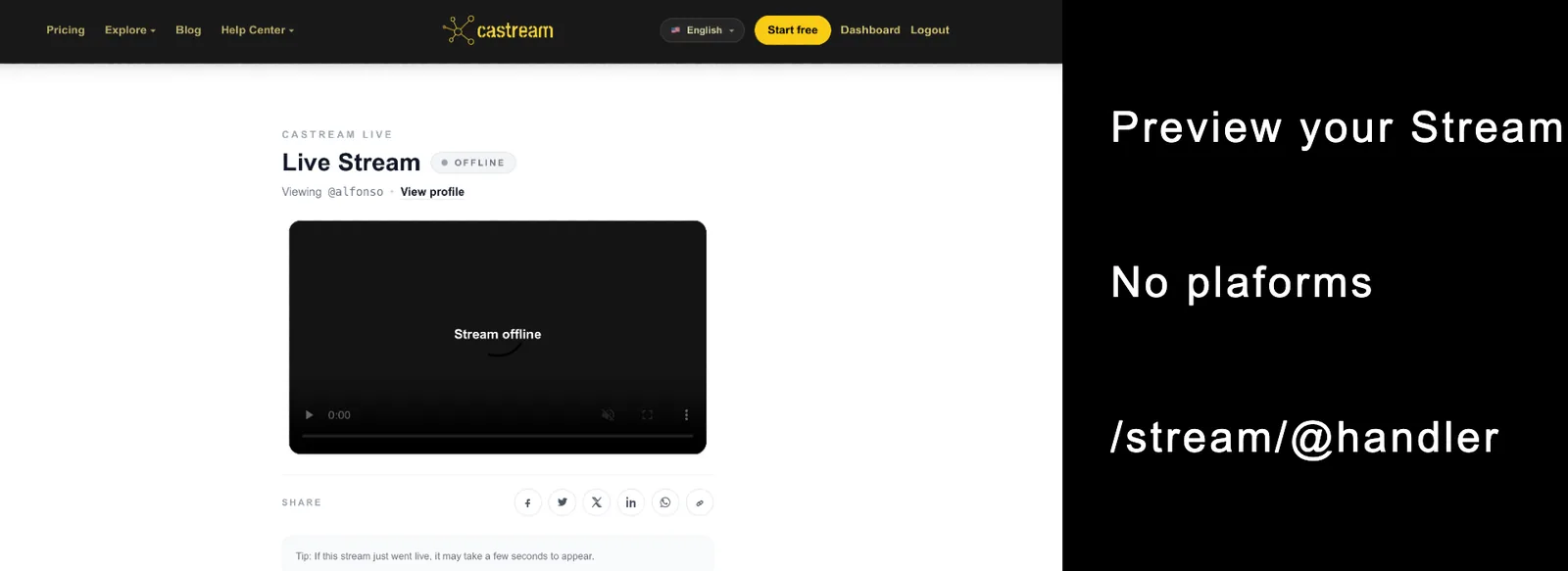
🎥 Live Stream Preview
Going live for the first time can feel like stepping onto a stage with no rehearsal. Castream gives you a private “backstage mirror” so you can see exactly what your stream looks like before sharing it with the world.
👀 What is Live Stream Preview?Live Stream Preview lets you watch your stream in real time on a private, unlisted page tied to your username (your @handler) on the Castream platform.
🚨 New here? Claim your @handler first
When you sign up, Castream assigns you a random handler (like a temporary name).
You can change it anytime to a unique @handler (if available).
Go to Settings → Account to claim yours.
-
Public profile (share anytime on Castream):
https://castream.io/@yourhandler -
Live preview (only active while streaming):
https://castream.io/stream/yourhandler
Example:
- Public profile: https://castream.io/@alfonso
- Live preview: https://castream.io/stream/alfonso
Think of it as your personal control room monitor 🎛️
🚀 Why use Live Stream Preview?Before sending your stream out to external platforms like YouTube, Twitch, or Facebook, you can:
- ✅ Check video quality and framing
- 🔊 Make sure audio is working
- 🛠 Catch issues before your audience does
No pressure. No audience. Just you and your stream inside Castream.
⚙️ How it works- Open Castream and tap Go Live
- Start streaming (no external destinations required)
- Visit your preview URL:
https://castream.io/stream/yourhandler - Watch your stream in real time
That’s it. No setup, no extra steps.
🔒 Privacy & visibilityBy default, your live stream preview on Castream is unlisted.
To make your stream appear on your public Castream profile and other surfaces:
- Go to destinations toggles (in Go Live screen)
- Tap on Castream (platform destination)
- Set Privacy = Public for this and future sessions
Once set to public:
- 🌐 Your stream appears on your Castream profile (
/@yourhandler) - 👀 Others can discover and watch your stream
If not set to public:
- 🔐 Your stream stays private
- Only people with your preview link can view it
Nope.
You can go live using Castream only, without linking any external platforms.
Castream always creates your preview stream, so you can:
- 🧪 Test privately
- 👥 Share with a small group
- 🔍 Verify everything looks good before broadcasting externally
Once you’re happy with your preview, you have two options:
Option 1: Share your Castream profile 🌐Send people to your Castream page:
- https://castream.io/@yourhandler
⚠️ Make sure your Castream privacy is set to Public for it to appear here.
Your live stream will show automatically when you're live.
Option 2: Stream to external destinations 🔗Connect platforms like:
- YouTube
- Twitch
- Facebook Pages
Then go live and Castream will broadcast everywhere at once.
💡 Pro tipUse your preview link like a secret doorway 🗝️
- Send it to a friend for a quick “does this look good?” check
- Test new setups without notifying your audience
- Iterate fast inside Castream before going live externally
- 🎥 Every stream gets a private preview page on Castream
- 🔓 No external destinations required to go live
- 🔒 Privacy controls whether your stream is public or unlisted on Castream
- 🆔 You start with a random handler and can claim a custom one
- 🌐 Your Castream profile becomes your shareable hub when set to public
- 🔗 Optionally stream to external destinations like YouTube, Twitch, and Facebook
- 🎯 You control when and where your stream goes public
Your stream. Your stage. Your timing.